EOS Interfaces
Overlay (UI)
The UI interface controls the EOS overlay: the social overlay with the friends list, and the dialogs to block or report a player. The overlay needs an Epic Account login (Auth interface).
note
The overlay is only drawn in a Standalone or packaged game, not in Play In Editor. The player can also open it with the toggle key, Shift+F3 by default.
Common Nodes
| Node | Use |
|---|---|
EOS_UI_ShowFriends, EOS_UI_HideFriends | Opens or closes the friends list in the overlay |
EOS_UI_GetFriendsVisible | True while the friends list is open |
EOS_UI_SetToggleFriendsKey, EOS_UI_GetToggleFriendsKey | The key combination that opens the friends list |
EOS_UI_SetToggleFriendsButton, EOS_UI_GetToggleFriendsButton | The gamepad button combination that opens the friends list |
EOS_UI_SetDisplayPreference | Where on screen the overlay shows notifications |
EOS_UI_AddNotifyDisplaySettingsUpdated | Called when the overlay opens or closes |
EOS_UI_ShowBlockPlayer, EOS_UI_ShowReportPlayer | Opens the dialog to block or report a player |
EOS_UI_PauseSocialOverlay, EOS_UI_IsSocialOverlayPaused | Stops the overlay from opening, for example during a cutscene |
Example
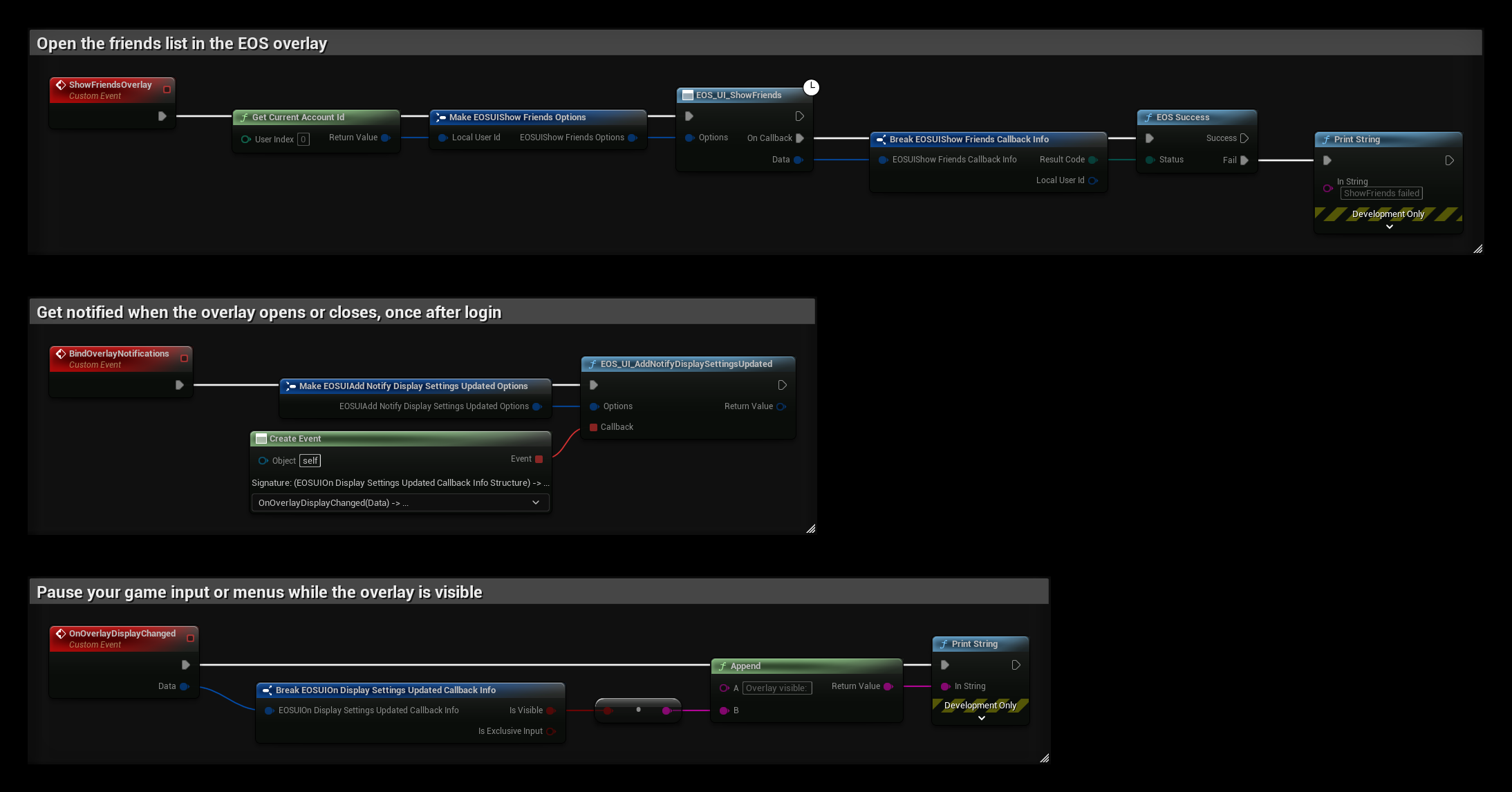
- The ShowFriendsOverlay event opens the friends list for the player from Get Current Account Id. On Callback is called when the overlay has opened, or with an error when it could not.
- Call BindOverlayNotifications once after login. EOS_UI_AddNotifyDisplaySettingsUpdated then calls OnOverlayDisplayChanged every time the overlay opens or closes.
- Is Visible is true while the overlay is shown, and Is Exclusive Input is true while it takes all input. Pause your game input or open your pause menu while it is visible.
See Join Friends Game and Join Friends Lobby for what happens when a player presses Join in the overlay.